1. Launch the application
Launch LIRALAND License Manager. During startup, Windows may display a security prompt.
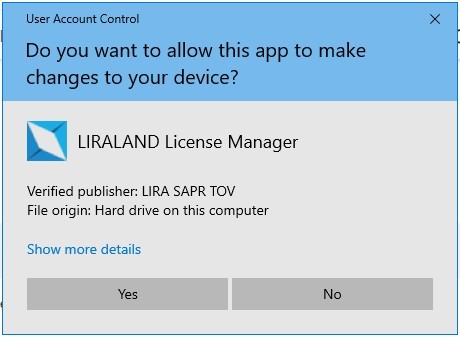
Click Yes to allow the application to make the required changes.
2. Start signing in to your account
In the main window of the application, click Login. A modal window will appear prompting you to sign in via a web browser.
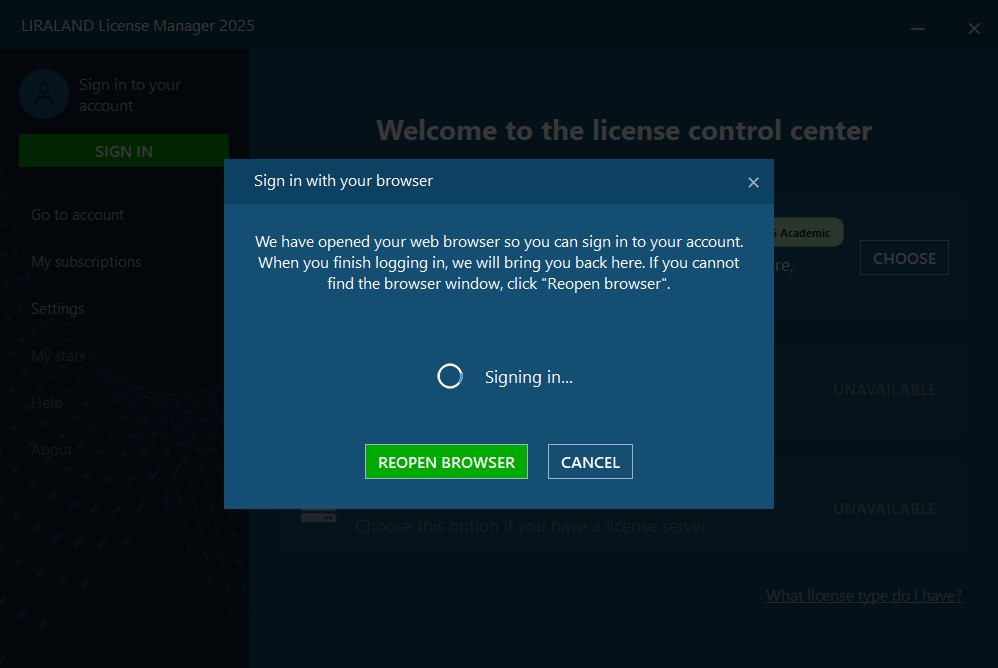
The application will automatically open your web browser. The status “Signing in…” will be displayed in the application window.
3. Sign in on the LIRALAND website
In the opened browser, sign in to your LIRALAND account. After successful authentication, the Opening product page will appear.
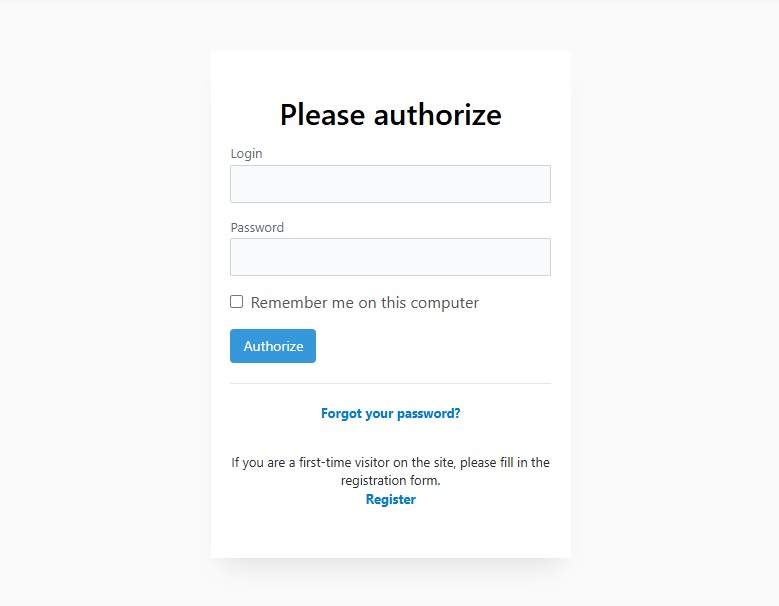
4. Confirm returning to the application
After signing in, your browser may display a prompt asking to open the application:
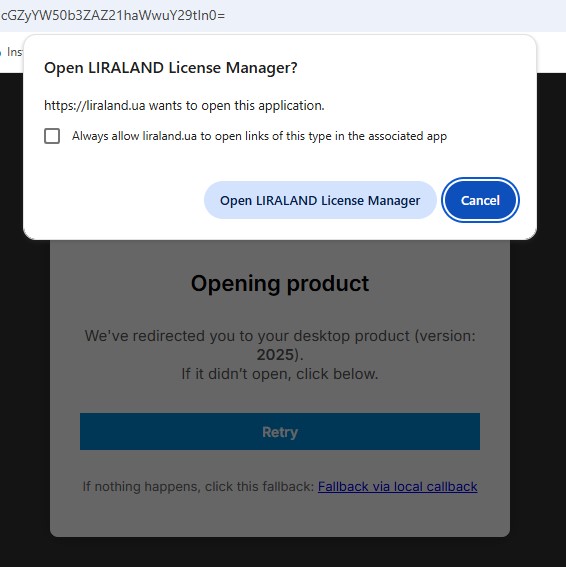
Click Open Liraland.License.Manager.exe. It is also recommended to enable the option Always allow liraland.ua to open links of this type.
5. Return to LIRALAND License Manager
After confirmation, the application will automatically open or regain focus. The sign-in dialog will close, and the system will proceed to subscription verification.
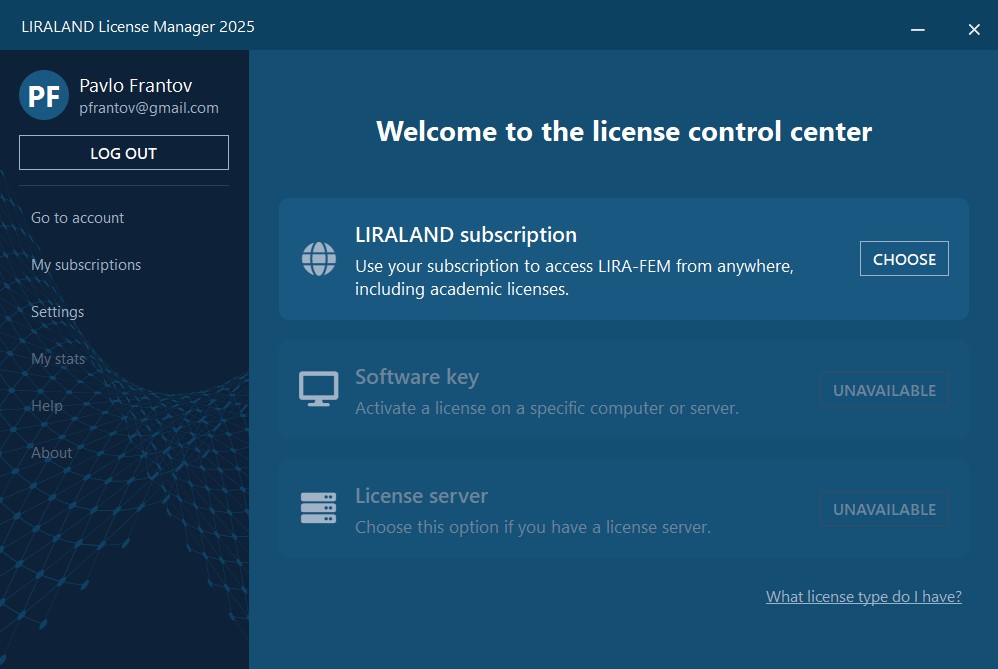
6. Activate your subscription
In the main window of LIRALAND License Manager, locate the LIRALAND Subscription section and click Select.
A list of subscriptions available for your account will open. Find the subscription with the status ACTIVE and click Activate.
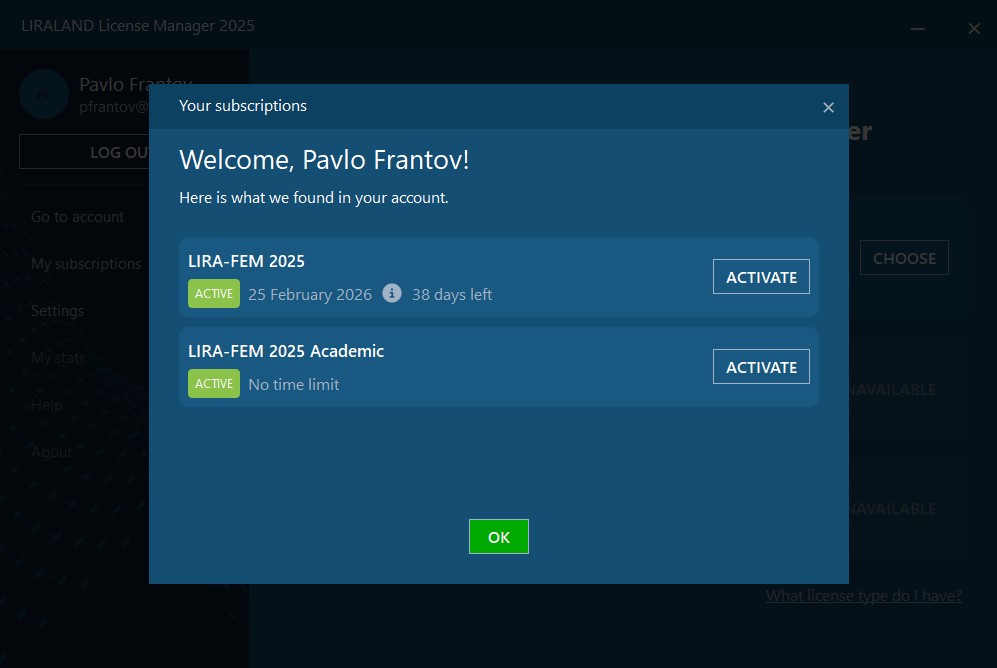
After completion, a confirmation message will appear. Your LIRALAND software products are now ready for use.
Note: Do not close the application while signing in or activating the subscription. If you encounter any issues, make sure the application is launched with administrator privileges.
If you find a mistake and want to inform us about it, select the mistake, then hold down the CTRL key and click ENTER.

Comments