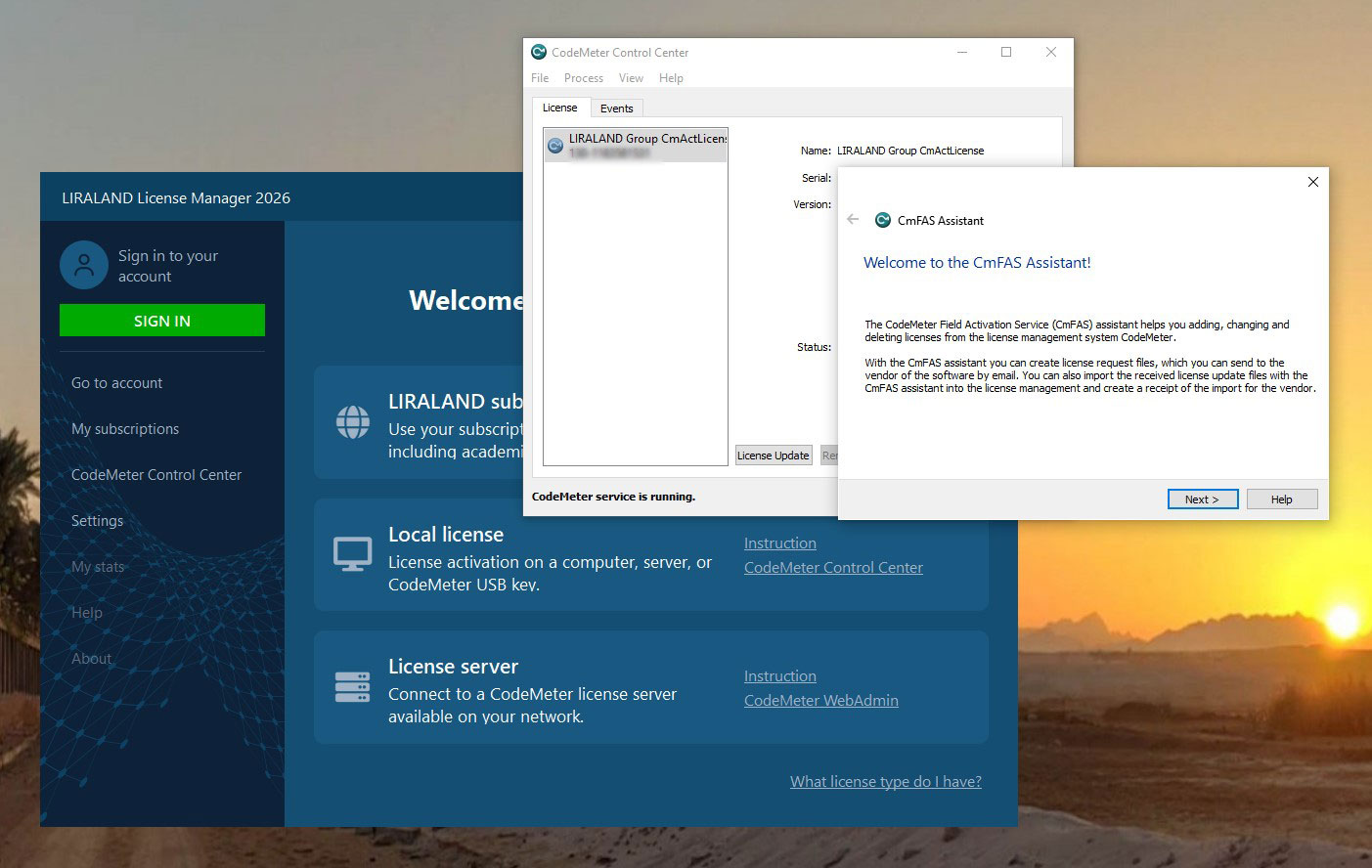
LIRALAND licenses are managed using the CodeMeter Control Center utility by WIBU Systems.
CodeMeter Control Center allows you to activate software licenses, update CodeMeter USB dongles, create license request files, import received license files, and view the contents of activated licenses.
Common Steps
1. Installing CodeMeter Runtime
To work with licenses, the CodeMeter Runtime component must be installed.
It can be installed:
- automatically together with LIRA-FEM;
- or separately using the CodeMeter Runtime installer.
The installation procedure is described in the article CodeMeter Keys. Protection of LIRALAND Applications.
2. Starting CodeMeter Control Center
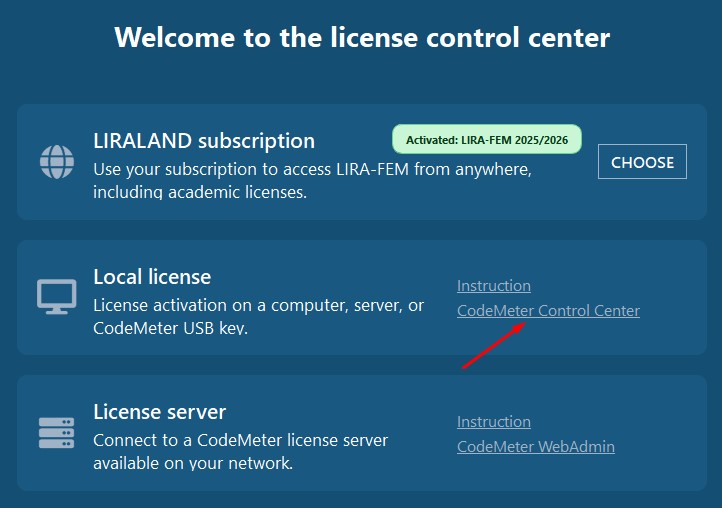
If you opened this guide from the LIRALAND License Manager, click the CodeMeter Control Center link.
Or start the program manually:
- Click the Start button.
- Type CodeMeter Control Center.
- Launch the application from the search results.

Software License Activation
Before reinstalling the operating system, replacing or formatting the system drive, migrating the system to another computer, or making other hardware changes, you must deactivate the software license.
Failure to do so may result in the permanent loss of the license.
1. Importing the LIRALAND Installation File
To create a software license, you must import the developer installation file once:
LIRALAND_Group_CmActLicense.WibuCmLif
This file is provided by e-mail.
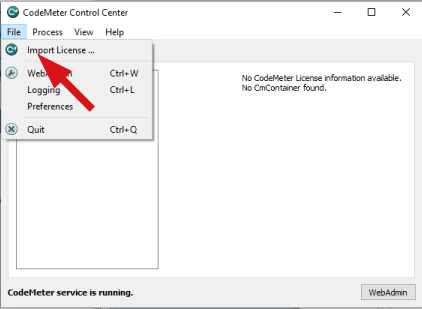
- Open CodeMeter Control Center.
- Drag the
.WibuCmLiffile into the application window or use the import menu. - After the import, a local software license container will be created.
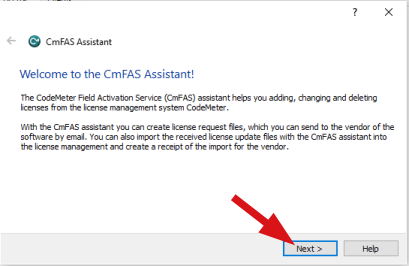
2. Creating a License Request
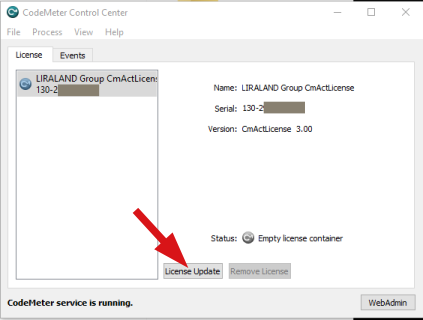
- Select the created software license container.
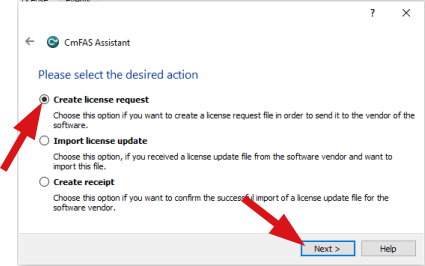
- Click License Update.
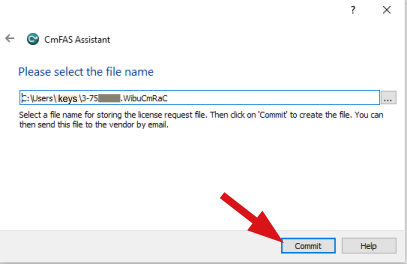
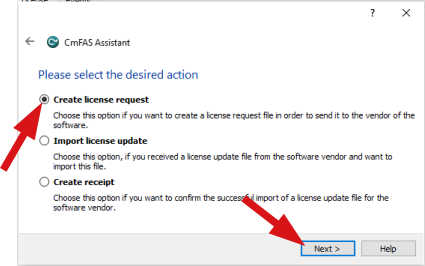
- Select Create license request.
- Save the generated license request file.
Send the generated file to: support@liraland.com.ua
3. Importing the Received License
After receiving the license file from the developer:
- Open CodeMeter Control Center.
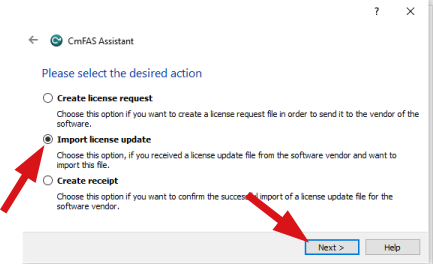
- Click License Update.
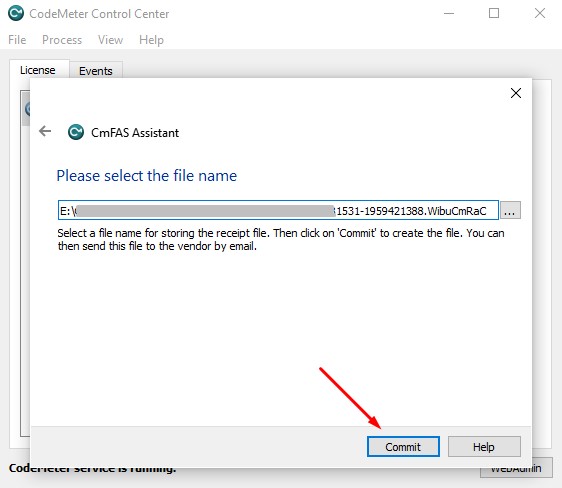
- Select Import license update.
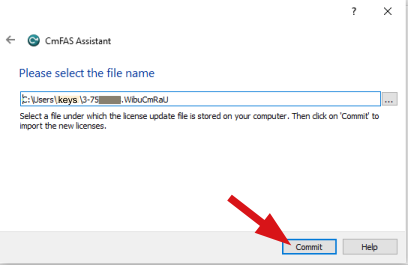
- Choose the received license file.
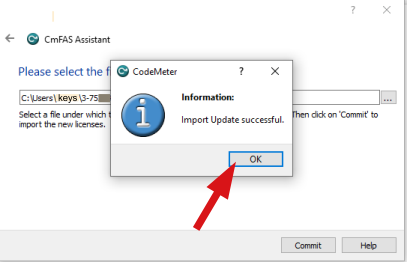
- Click Commit.
4. Creating a Receipt File
After the activation is completed:
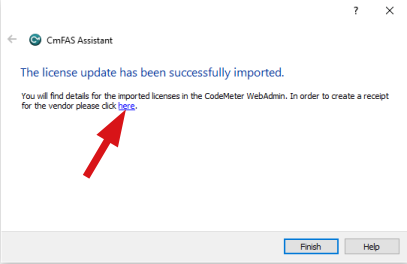
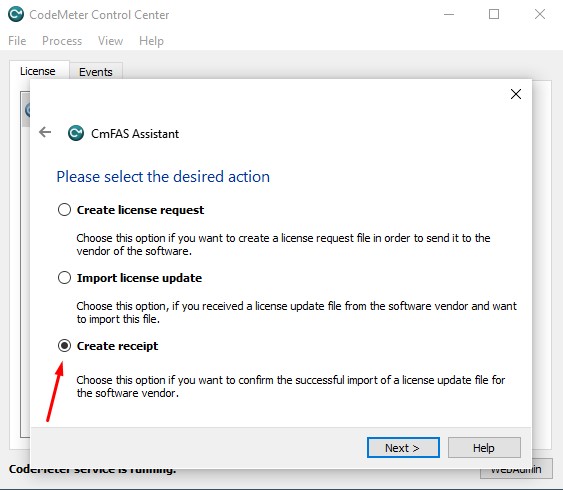
- Click the link or select Create receipt.
- Save the receipt file.
- Send it to: support@liraland.com.ua.
5. Verifying the License
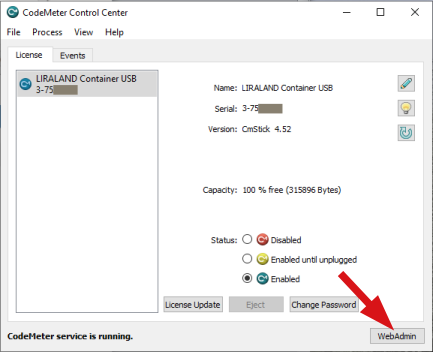
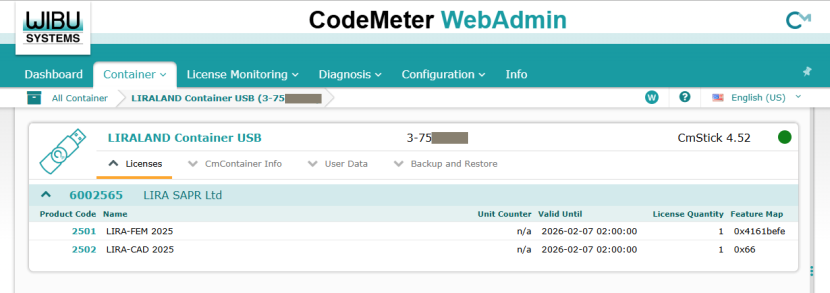
- Click WebAdmin in CodeMeter Control Center.
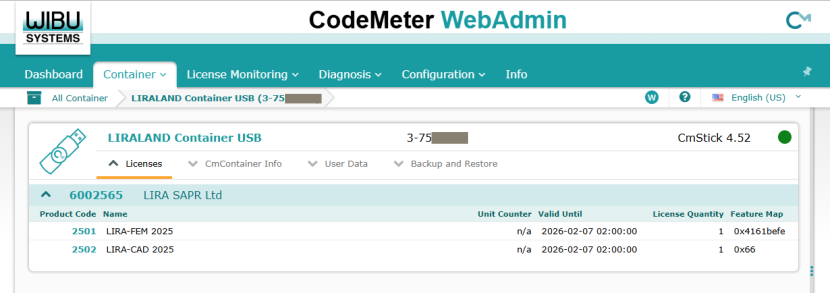
- The license management page will open in your browser.
- Verify the activated products, expiration dates, and the number of available licenses.
CodeMeter USB Dongle Activation
1. Connecting the USB Dongle
Connect the CodeMeter USB dongle to your computer.
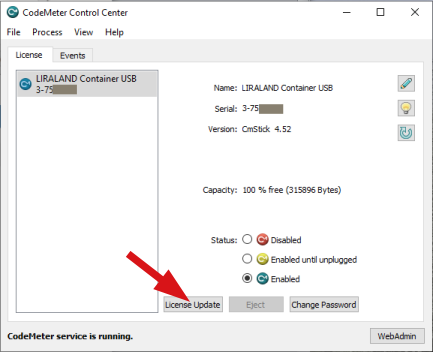
In CodeMeter Control Center, select the dongle and click License Update.
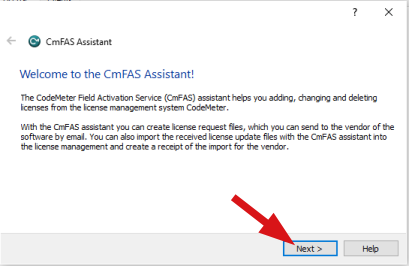
2. Creating a License Request
- Select Create license request.
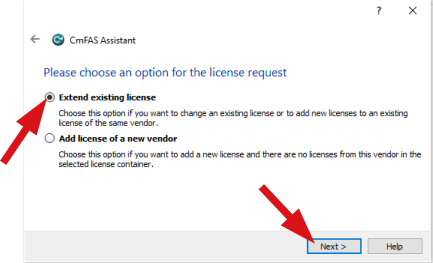
- Select Extend existing license.
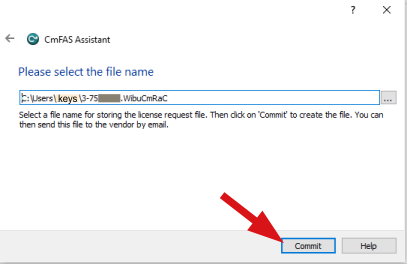
- Save the generated license request file.
- Send it to: support@liraland.com.ua.
3. Importing the Received License
After receiving the license file:
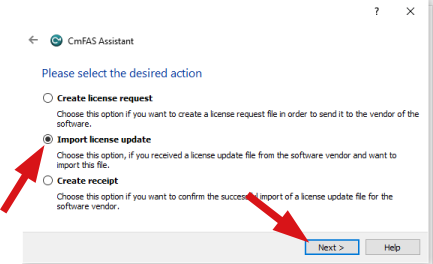
- Open CodeMeter Control Center.
- Click License Update.
- Select Import license update.
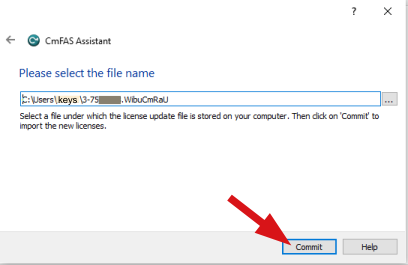
- Choose the received file.
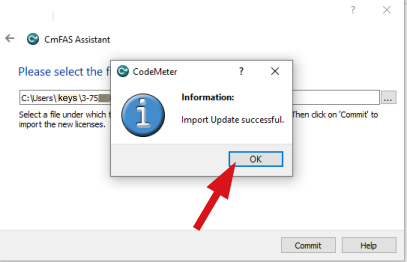
- Click Commit.
4. Creating a Receipt File
After the update is completed:
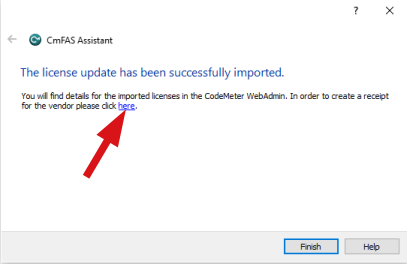
- Click the link or select Create receipt.
- Save the receipt file.
- Send it to: support@liraland.com.ua.
5. Verifying the License
- Click WebAdmin in CodeMeter Control Center.
- The license management page will open in your browser.
- Verify the activated products, the number of licenses, and the dongle status.
If you find a mistake and want to inform us about it, select the mistake, then hold down the CTRL key and click ENTER.

Comments